Nowadays I use VS Code for almost everything, including for writing my Powershell scripts. Some of my colleagues still prefer the familiar layout of the classic Powershell ISE. However, Powershell ISE is no longer actively developed and I believe it doesn’t support PowerShell 7. In this post, I’ll share how to get the classic PowerShell ISE look and feel inside VS Code using the PowerShell extension.
Powershell ISE mode is part of the Powershell extension in VSCode.
- Open the Command Palette by pressing Ctrl + Shift + P
- Search for “Powershell” or “ISE”
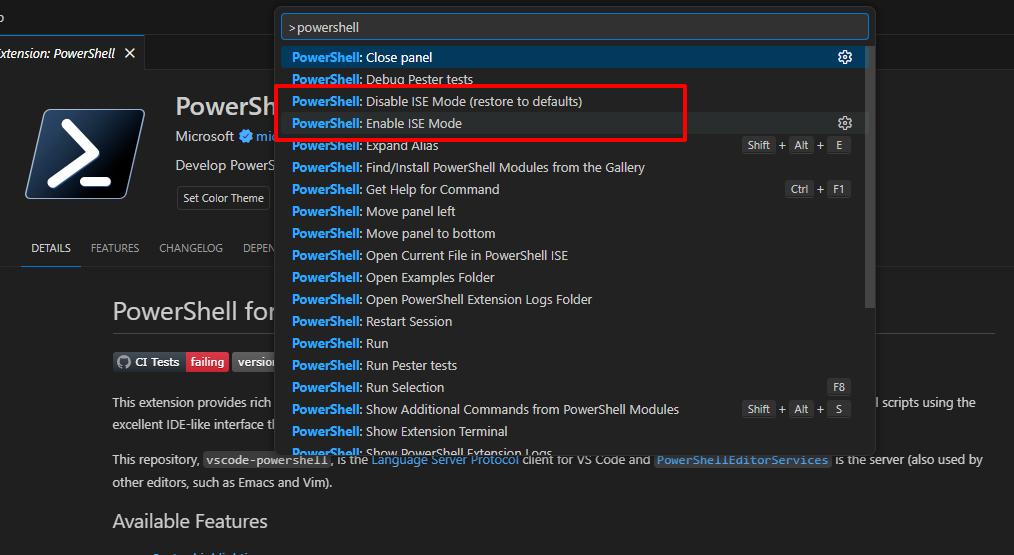
- Select PowerShell: Enable ISE Mode.
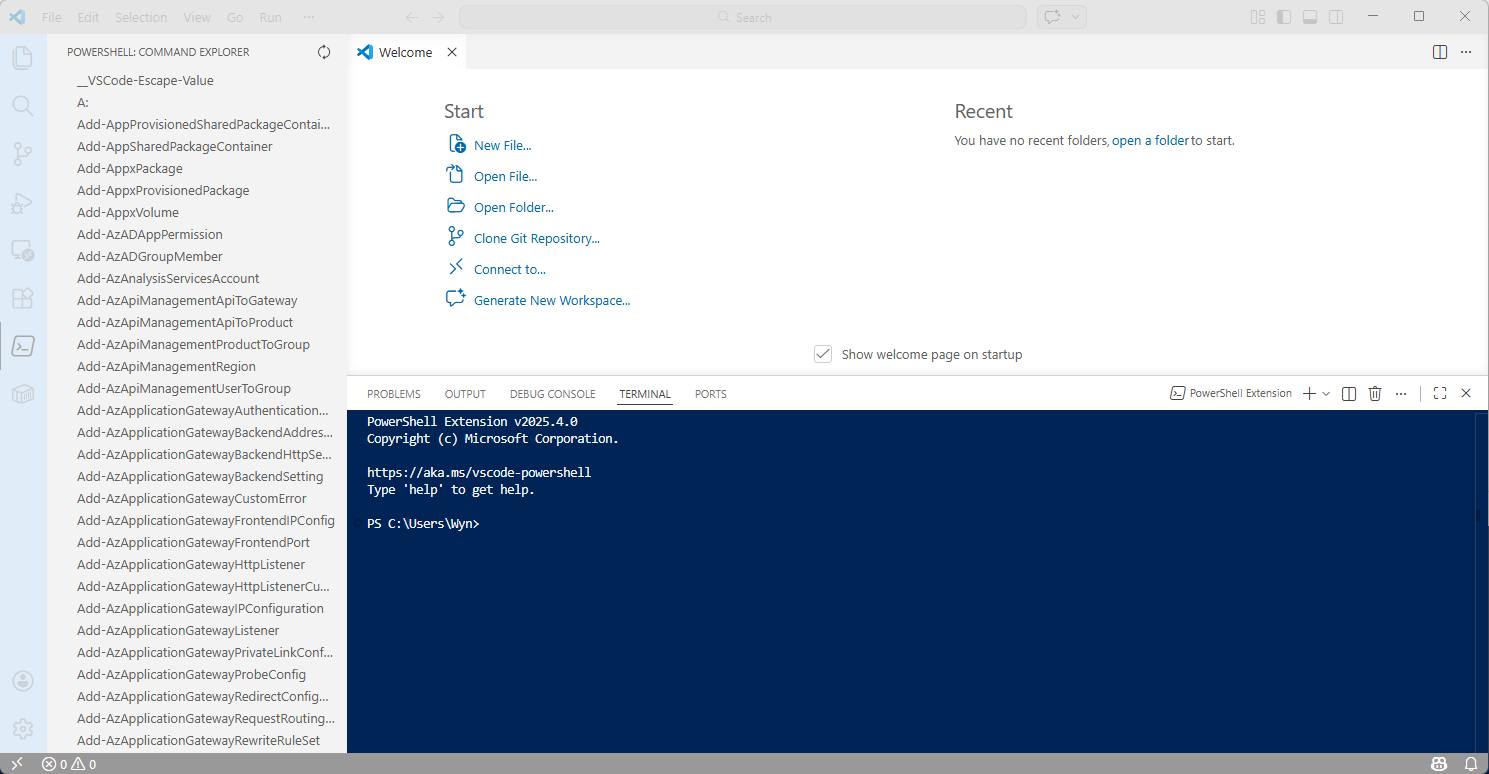
And that’s it. VSCode switches to an ISE-like layout, including colour themes and panel arrangement designed to feel familiar to long time Powershell ISE users. I hope this was helpful.