In today’s post, I’m sharing the process of setting up an Azure Point-to-Site VPN connection using Entra ID for authentication. I’ve already got my Azure VPN Gateway deployed in my environment.
Configure the Point to Site Settings
Under Settings, click to enable and configure the Point-to-Site VPN. We will need to allocate a subnet for the VPN client connections. For my environment, I will assign 172.20.20.0/24. Select Azure Active Directory for the Authentication type and we need to specify our Entra ID Tenant information.
For the Tenant property, replace the value with our Tenant ID:
https://login.microsoftonline.com/{TenantID}
For Audience property, I use the Microsoft registered VPN ID:
c632b3df-fb67-4d84-bdcf-b95ad541b5c8
Note: You can create a custom app registration which allows you more control but in my case, I’m using the Microsoft registered that is already available.
For the Issuer property, replace the value with our Tenant ID (note the / at the end is required):
https://sts.windows.net/{Microsoft ID Entra Tenant ID}/
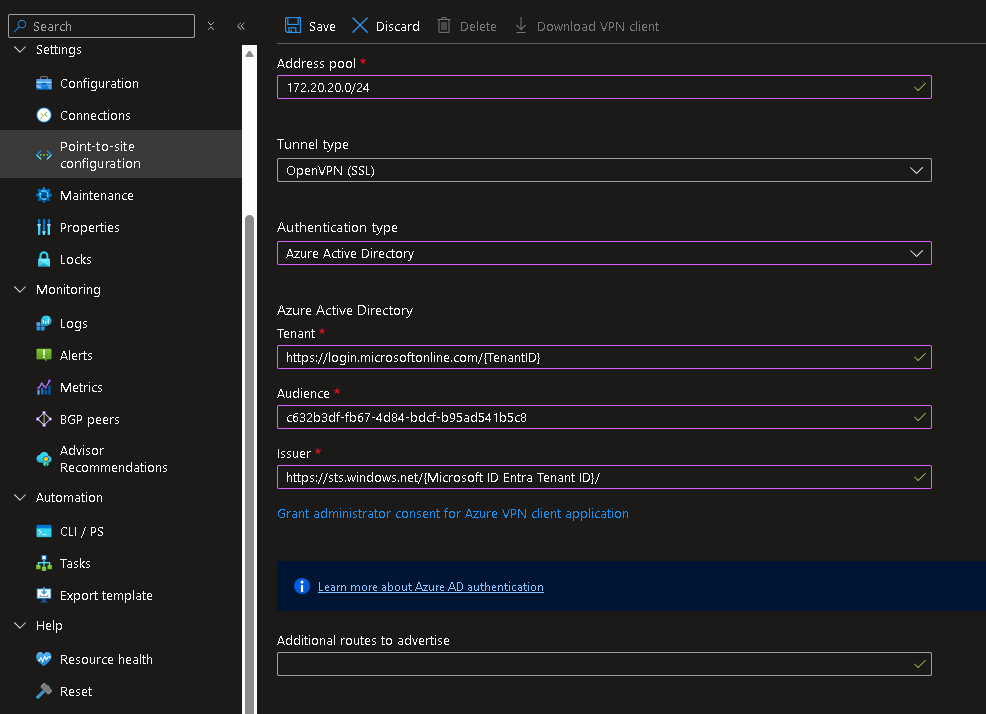
After saving the configuration, I downloaded the VPN client package, which includes the XML profile we’ll use for deployment. I will push the VPN settings out through Intune so the connection is preconfigured on all managed endpoints.

Creating the VPN Profile for Intune
The Azure VPN Client is available in the Microsoft Store. I pushed this out to my endpoints as a Microsoft Store app in Intune. Once that is deployed, we now need to push out the Azure VPN Profile. To do this, first I need to create the required XML profile.
Open a text editor and paste the following. I will modify the values here with information from the VPN client package downloaded above. Save this file as VPNProfile.xml.
<VPNProfile>
   <RememberCredentials>true</RememberCredentials>
   <AlwaysOn>true</AlwaysOn>
   <TrustedNetworkDetection>contoso.com</TrustedNetworkDetection>
   <PluginProfile>
     <ServerUrlList>azuregateway-7cee0077-d553-4323-87df-069c331f58cb-053dd0f6af02.vpn.azure.com;FriendlyName</ServerUrlList>
     <CustomConfiguration>

     </CustomConfiguration>
     <PluginPackageFamilyName>Microsoft.AzureVpn_8wekyb3d8bbwe</PluginPackageFamilyName>
   </PluginProfile>
   <RegisterDNS>false</RegisterDNS>
 </VPNProfile>
Replace the section <TrustedNetworkDetection> with the appropriate value for the environment.
<TrustedNetworkDetection>test.local</TrustedNetworkDetection>
Replace the value in <ServerUrlList> with information from the azurevpnconfig.xml. This file is part of the VPN client package downloaded from the VPN Gateway. Within this file, locate the <ServerUrlList> section and copy the value specified in <fqdn>. For my profile, I assign “WynsWorldVPN” as the FriendlyName
<ServerUrlList>azuregateway-7cee0077-d553-4323-87df-069c331f58cb-053dd0f6af02.vpn.azure.com;WynsWorldVPN</ServerUrlList>
Copy all the contents of azurevpnconfig.xml and paste it in between the <CustomConfiguration> section.
Take note of the value in the <name> section as we will use this in our Intune policy.
<name>vnet-wyntest</name>
Deploy the VPN Profile in Intune
Now that I have the VPNProfile.xml, I can deploy it using Intune.
Create a new policy:
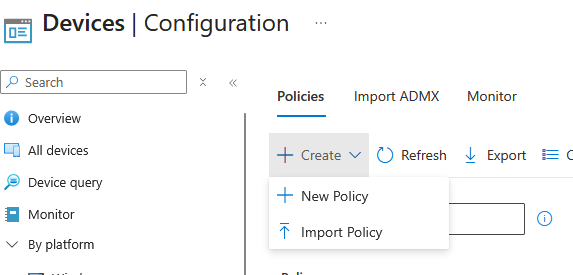
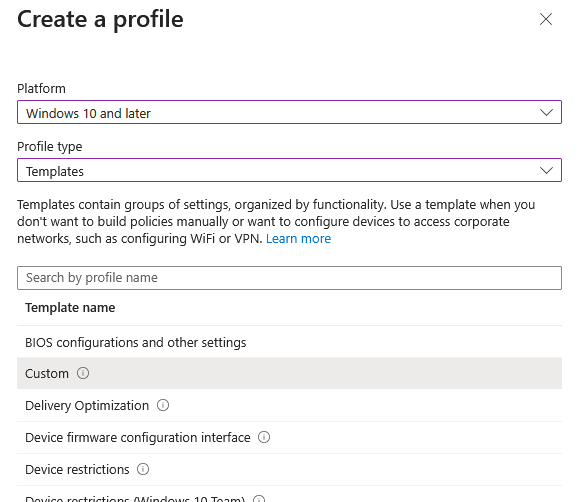
Select the Custom option, and then specify a name for the policy.
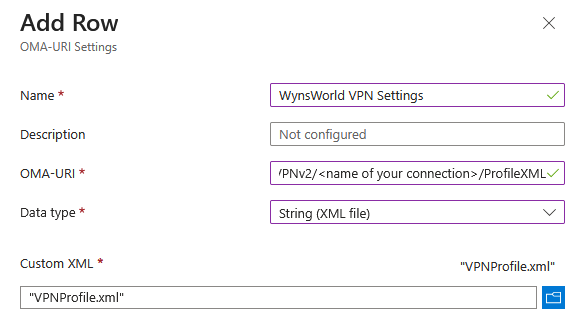
Under Configuration Settings, click Add and fill up the required settings. Under OMA-URI, use the following and replace the connection name with the value from <name> noted previously.
./User/Vendor/MSFT/VPNv2/<name of your connection>/ProfileXML
Select String (XML file) for the Data Type field. Then I select the VPNProfile.xml file created earlier.
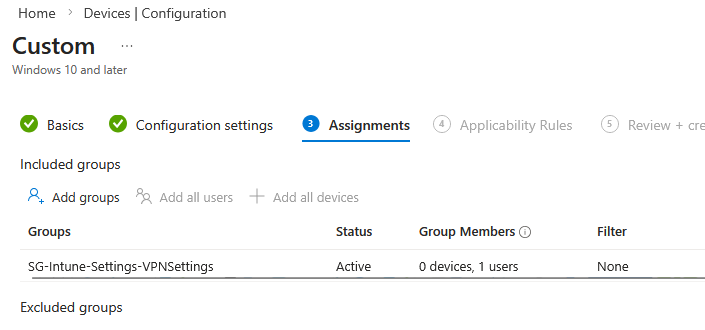
Under Assignments, select the Group to deploy the Intune policy to and then Save the Intune policy.
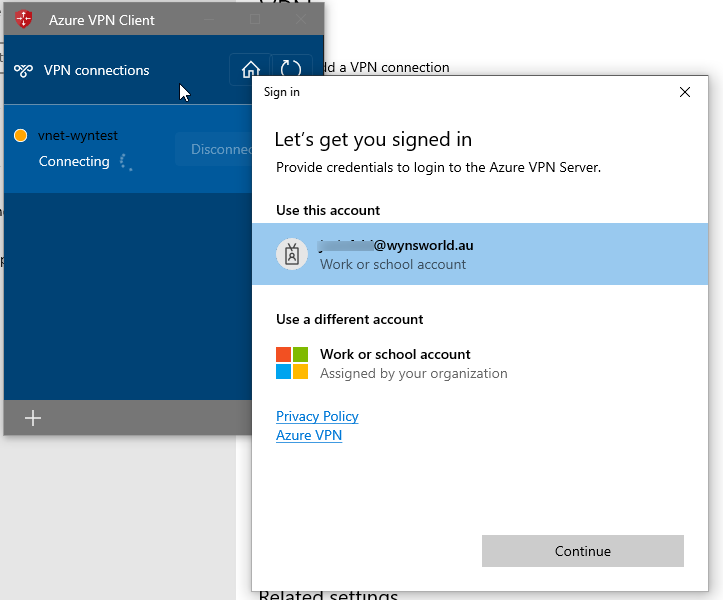
Logging into Azure VPN Client
After Intune pushes both the VPN client and the VPN profile to the endpoints, users can launch the Azure VPN client and sign in with their Entra ID account. The first time they launch it, they’ll usually get a quick authentication prompt, and after that the connection process is pretty seamless.
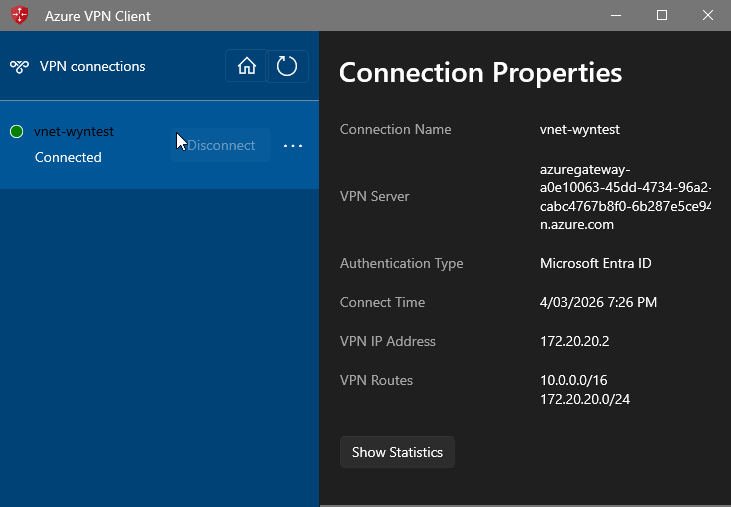
We can also see some additional information from the Azure VPN client such as the VPN IP Address:
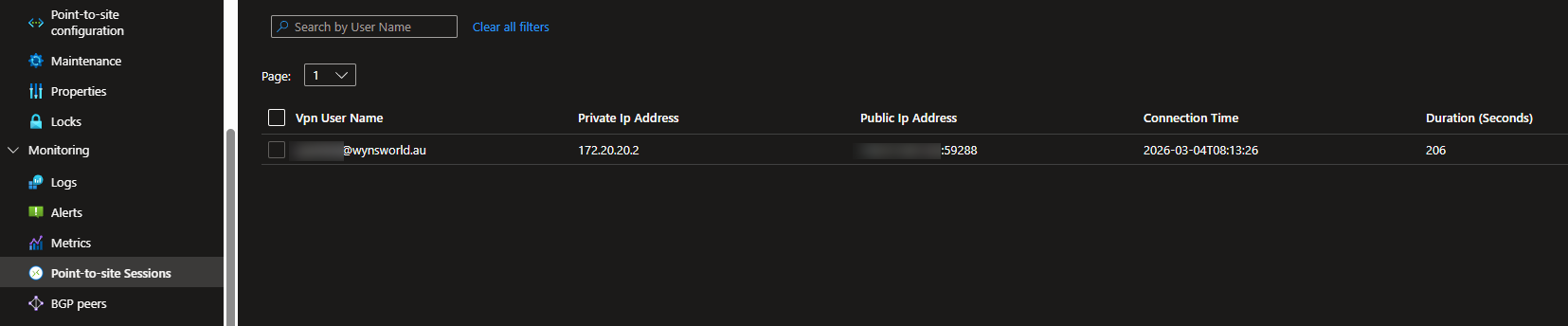
From the VPN Gateway in the Azure Portal, I can confirm the connection:
Thanks for following along as I walked through the setup and tested the user experience. Overall, this gave me a solid feel for how Entra ID works with Azure P2S VPN and what it might look like in our environment. I hope this was helpful.