I like using Git Bash, especially when I’m working with the Azure CLI. To make switching easier, I added Git Bash to Windows Terminal so I can move between it and PowerShell without hassle.
To add Git Bash as a profile in Windows Terminal:
-
Find the installation directory of Git for Windows. For my installation, it is under
C:\Program Files\Git -
Within this directory, navigate to
usr\binto findbash.exe. The full path is something likeC:\Program Files\Git\usr\bin\bash.exe -
Launch Windows Terminal and go to Settings.
-
Click Add a new profile.
-
Configure a new Profile. In my case, I used the below information:
Name : Git Bash Command Line : C:\Program Files\Git\usr\bin\bash.exe Icon (Optional) : C:\Program Files\Git\mingw64\share\git\git-for-windows.ico Starting Directory (Optional) : %USERPROFILE% -
Click Save. Then close and relaunch the Windows Terminal.
-
Now you can open a new tab and run a Git Bash terminal.
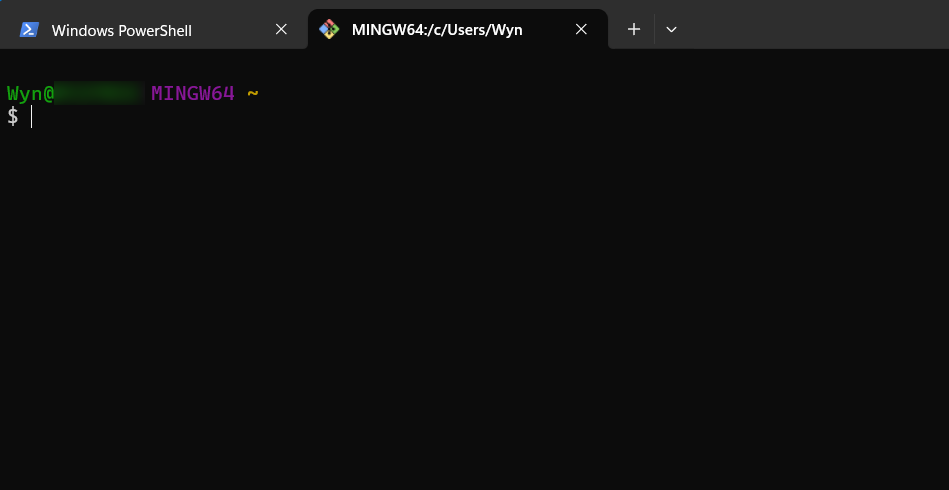
Adding Git Bash to Windows Terminal makes working across shells simple. Hope that helps.