In my previous post, I explored Windows Hello for Business using the Key Trust model. This time, I’m turning my attention to configuring Windows Hello to authenticate with Cloud Kerberos Trust.
For this test, I’m working on an Entra ID–joined machine and attempting to access an on‑premises Active Directory domain‑joined file server. Signing in with Windows Hello for Business against Entra ID works perfectly for cloud applications, but the moment I try to reach on‑premises resources such as file shares, printers, or legacy apps, Kerberos is required. Traditionally the device must be domain‑joined, or the user is prompted again to supply their AD credentials.
Because my machine isn’t joined to the on‑premises AD domain, I’m prompted for domain credentials whenever I attempt to connect to the file server. To confirm this, I ran the klist command. The output shows that there is no Kerberos ticket available, which explains why the authentication challenge appeared.
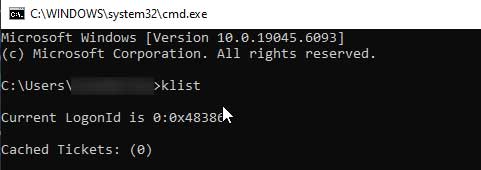
To make the experience seamless, I’ll configure Cloud Kerberos Trust so that Entra ID can participate in Kerberos authentication. With this setup, Entra ID issues a partial Kerberos ticket whenever a user signs in using Windows Hello for Business or another passwordless method such as FIDO. This partial ticket acts as proof that the user has already authenticated securely with Entra ID.
The device then presents this partial ticket to an on‑premises domain controller. The domain controller validates it and, based on that trust, issues a full Kerberos ticket. That full ticket is what allows access to resources like my on‑premises file server. The result is that I’m no longer prompted to enter AD domain credentials when connecting to the file server, the passwordless sign‑in flows all the way through, delivering a seamless experience for a user.
Enable Cloud Kerberos Trust
Install the following module:
# First, ensure TLS 1.2 for PowerShell gallery access.
[Net.ServicePointManager]::SecurityProtocol = [Net.ServicePointManager]::SecurityProtocol -bor [Net.SecurityProtocolType]::Tls12

# Install the AzureADHybridAuthenticationManagement PowerShell module.
Install-Module -Name AzureADHybridAuthenticationManagement -AllowClobber
Create the EntraID Kerberos Server object in Active Directory:
# Specify the on-premises Active Directory domain. A new Microsoft Entra ID
# Kerberos Server object will be created in this Active Directory domain.
$domain = $env:USERDNSDOMAIN

# Enter an Azure Active Directory Hybrid Identity Administrator username and password.
$cloudCred = Get-Credential -Message 'An Active Directory user who is a member of the Hybrid Identity Administrators group for Microsoft Entra ID.'

# Enter a Domain Administrator username and password.
$domainCred = Get-Credential -Message 'An Active Directory user who is a member of the Domain Admins group and an Enterprise Admin for the forest.'

# Create the new Microsoft Entra ID Kerberos Server object in Active Directory
# and then publish it to Azure Active Directory.
Set-AzureADKerberosServer -Domain $domain -CloudCredential $cloudCred -DomainCredential $domainCred
This creates a Read-Only Domain Controller object within the the AD Domain Controllers OU:
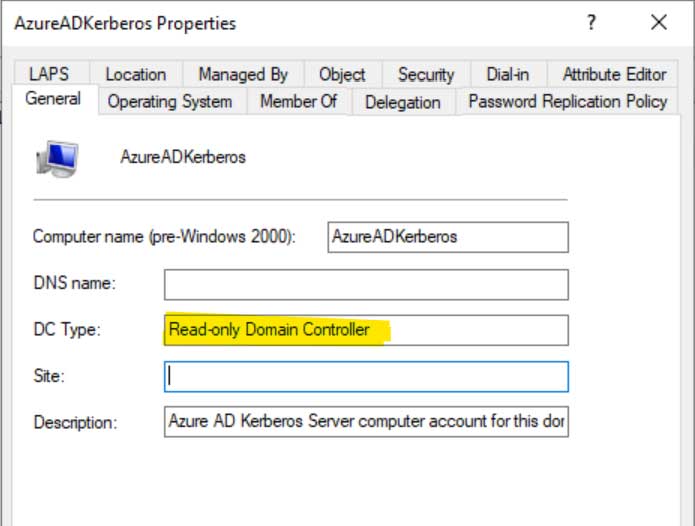
Keep in mind that for a multi‑domain forest, you must create a Kerberos Server object in each Active Directory domain where you want to enable Cloud Kerberos Trust. Without this step, Cloud Kerberos Trust will only function in the domains where the object has been configured.
Configure Windows Hello for Business
Now that Cloud Kerberos Trust is enabled, the next step is to configure Windows Hello for Business (WHfB) to take advantage of it. I’ll do this by updating my existing WHfB configuration profile in Intune. Within that profile, the following settings need to be applied:
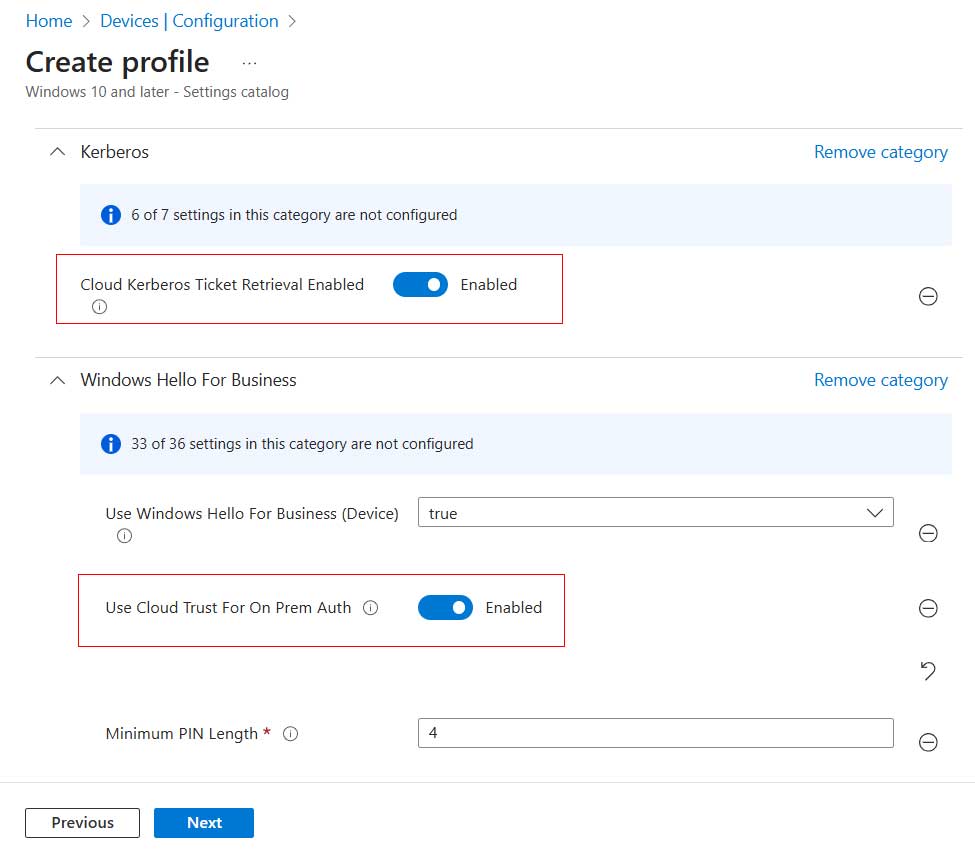
On my device, I initiate a manual sync to pull down the updated Intune policy. After that, I restart the machine to make sure it applies Cloud Kerberos Trust rather than the Key Trust model when I sign in with Windows Hello for Business. Once the system comes back online and I log in, running the klist command confirms the change, I can see that Entra ID has successfully issued a Kerberos ticket.
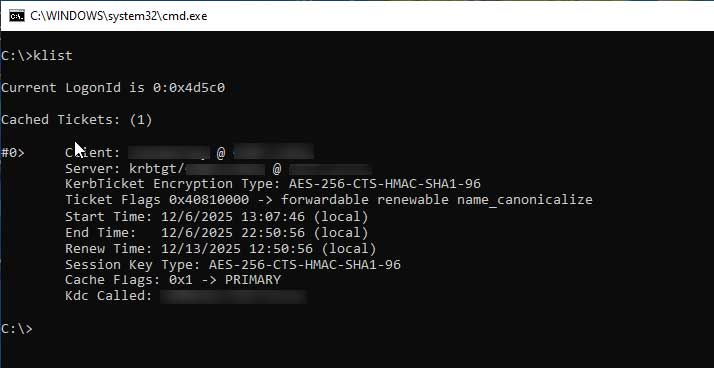
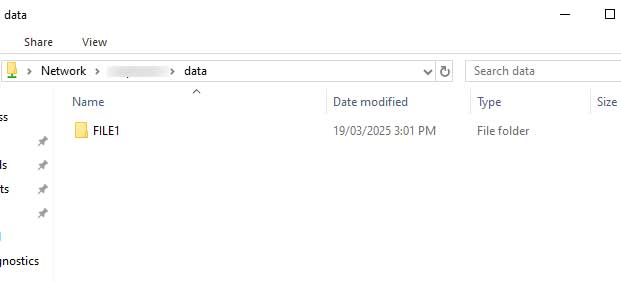
I am no longer prompted to enter my AD Domain credentials when accessing the file server:
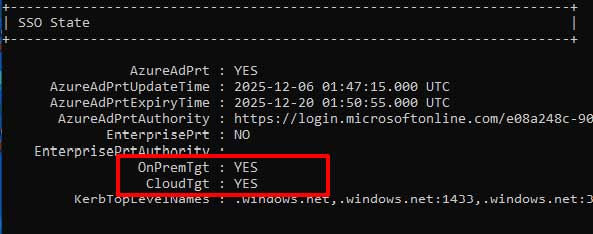
Running dsregcmd /status shows that I’ve been issued Kerberos Ticket:
Rotate the Keys
If you need to rotate the Kerberos Server Key, for example, as part of your regular security hygiene, you can do so directly from PowerShell. Rotating the key ensures that the trust between Entra ID and your on‑premises domain controllers remains secure and up to date.
Run the following command:
Set-AzureADKerberosServer -Domain $domain -CloudCredential $cloudCred -DomainCredential $domainCred -RotateServerKey
This command generates a new Kerberos Server Key and updates the corresponding object in Active Directory. Once the rotation is complete, Entra ID will use the new key when issuing partial Kerberos tickets, and your domain controllers will recognize it when exchanging with full tickets.
Remove the Kerberos Server Object
If you need to roll back the configuration and remove the Microsoft Entra Kerberos server from both your on‑premises Active Directory and Microsoft Entra ID, you can do so by running the following command:
Remove-AzureADKerberosServer -Domain $domain -CloudCredential $cloudCred -DomainCredential $domainCred
My Takeaways
Please also note that if a user’s password has expired, signing in with Windows Hello for Business (WHfB) is blocked. The expectation is that the password must be reset before WHfB can be used again. This behavior also applies in hybrid scenarios with Cloud Kerberos Trust. The reason is that enforcing password resets ensures expired credentials cannot be bypassed by passwordless sign‑in, maintaining security across both cloud and on‑premises environments.
Cloud Kerberos Trust still has limitations such as RDP. But for the most part, it provides a seamless experience for the user using an EntraID-joined device that do not initially have a Kerberos Ticket. The key benefit is single sign‑on without passwords, users authenticate once in EntraID, and that trust flows through to legacy Kerberos systems. Domain controllers remain necessary to mint full tickets, but their role in authentication is reduced. I hope you found this useful.