As I’ve been exploring passwordless authentication like Windows Hello for Business in my previous posts, one concept that has really captured my attention is the idea of phishing-resistant MFA. Traditional MFA methods, like SMS codes or OTP, can still be intercepted or tricked out of users through social engineering. Passkeys, however, are designed to close that gap by relying on cryptographic protocols that make phishing essentially impossible.
Let’s say I’m signing into my account. I type in my username and password, and the system asks for a second factor. That could either be a text message with a six‑digit code or a push notification from Microsoft Authenticator on my phone. Both feel secure at first glance. But suppose I click on a fake login page that looks identical to the real one. I enter my username and password, and the fake site instantly relays those details to the real service. The service then sends me the MFA challenge. If it’s SMS, I get the code on my phone and type it into the fake page, not realizing the attacker is capturing it in real time. If it’s Authenticator, I see a push notification and approve it, thinking it’s legitimate but in reality, I’ve just confirmed the attacker’s login attempt.
In both cases, the attacker doesn’t need to break encryption or guess anything. They simply trick me into handing over the second factor or approving their request. That’s just a sample of how I think phishing can trick you if using traditional MFA as it relies on secrets or approvals that can be intercepted or manipulated.
Passkeys change this and is more secure. The private key never leaves my device, and the only thing I do is a simple gesture, like unlocking my phone or approving a prompt. The signed challenge can only be validated by the legitimate service, and even if I’m tricked into visiting a fake site, the cryptographic protocols block the attempt. There’s nothing for the attacker to steal or replay. The gesture I make such as approving a prompt or unlocking my phone, unlocks the private key stored securely on my device. That private key never leaves the device, and the signed challenge can only be validated by the legitimate service. Even if I were tricked into visiting a fake site, the cryptographic protocols like WebAuthn and FIDO2 would prevent the authentication from succeeding.
My Understanding of How it Works
Similar to WHfB, when I register a passkey my device generates a key pair: a private key that never leaves the device, and a public key that is stored with the service, in this case on EntraID. During sign-in, EntraID sends a challenge that only the private key can answer. Because the private key is bound to the legitimate domain and cannot be exported, even if I were tricked into visiting a fake site, the authentication would fail. This is the core of phishing resistance as there is no secret that can be stolen or replayed elsewhere.
What makes the user experience interesting is the gesture involved. Instead of typing a password or code, I simply approve the sign-in with something natural, like unlocking my phone with biometrics or confirming a prompt. That gesture whether it’s a fingerprint, face recognition, or a tap then unlocks the private key stored securely on my device. Behind the scenes, protocols like WebAuthn and FIDO2 handle the communication between the browser, the authenticator, and EntraID. The browser acts as the client for the relying party, sending the challenge, while the MS authenticator on my phone signs it. The Bluetooth connection between my PC and phone ensures proximity, so the system knows the device I’m using is physically near me, adding another safeguard against remote attacks.
Here is a simple flow to illustrate what I mean:
+------------------+          +------------------+          +------------------+
|   User in        |          |   Browser        |          |   Entra ID       |
|   Browser        |          |                  |          |                  |
+------------------+          +------------------+          +------------------+
        |                           |                           |
        |    Login request          |                           |
        |-------------------------->|                           |
        |                           |    Challenge request      |
        |                           |-------------------------->|
        |                           |                           |
        |                           |<--------------------------|
        |                           |    Challenge received     |
        |                           |                           |
        |                           |---- Bluetooth ----------->|
        |                           |(to phone w/ Authenticator)|
        |                           |                           |
        |                           |   User gesture unlocks    |
        |                           |   private key             |
        |                           |<--- Signed challenge -----|
        |                           |                           |
        |                           |    Signed response        |
        |                           |-------------------------->|
        |                           |                           |
        |                           |<--------------------------|
        |                           |   Verified, access granted|
        |                           |                           |
- The user initiates login in the browser.
- The browser requests authentication from Entra ID.
- Entra ID sends back a challenge.
- The browser communicates with the phone via Bluetooth, prompting Microsoft Authenticator.
- The user performs a gesture (like fingerprint or face unlock), which unlocks the private key and signs the challenge.
- The signed response is sent back to Entra ID, which verifies it with the public key and grants access.
Bluetooth is used to establish a secure, short-range connection between the browser and the device holding the passkey which is my mobile phone with MS Authenticator. The mobile phone don’t need to be paired like headphones or speakers. It just needs to have Bluetooth turned on. The browser uses a protocol called WebAuthn to discover that MS Authenticator on my phone is nearby using Bluetooth. As long as my phone is nearby and Bluetooth is enabled, the browser can send the authentication request, and MS Authenticator can respond securely. This ensures I am physically next to the computer that I’m using to login to my account.
Using MS Authenticator on my phone to store the passkey is more convenient than using a separate FIDO2 device like YubiKeys, etc.
Using Passkey on EntraID
In the Entra admin portal, I can define a policy that requires phishing-resistant MFA. Instead of allowing the traditional MFA, I can specify that users must authenticate with passkeys. By targeting specific groups such as admins, I can gradually roll out this requirement. When those users sign in, Entra ID enforces the policy.
Enable Passkey Authentication Method
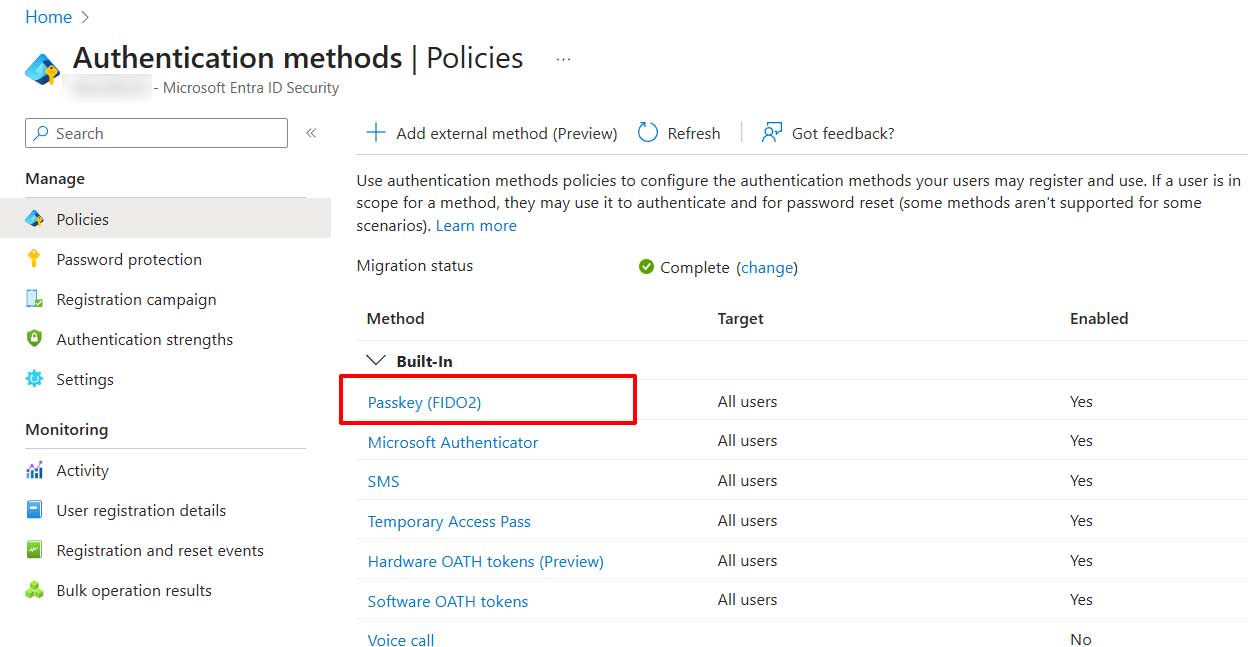
On the Entra Admin portal, add/enable the Passkey (FIDO2) authentication method.
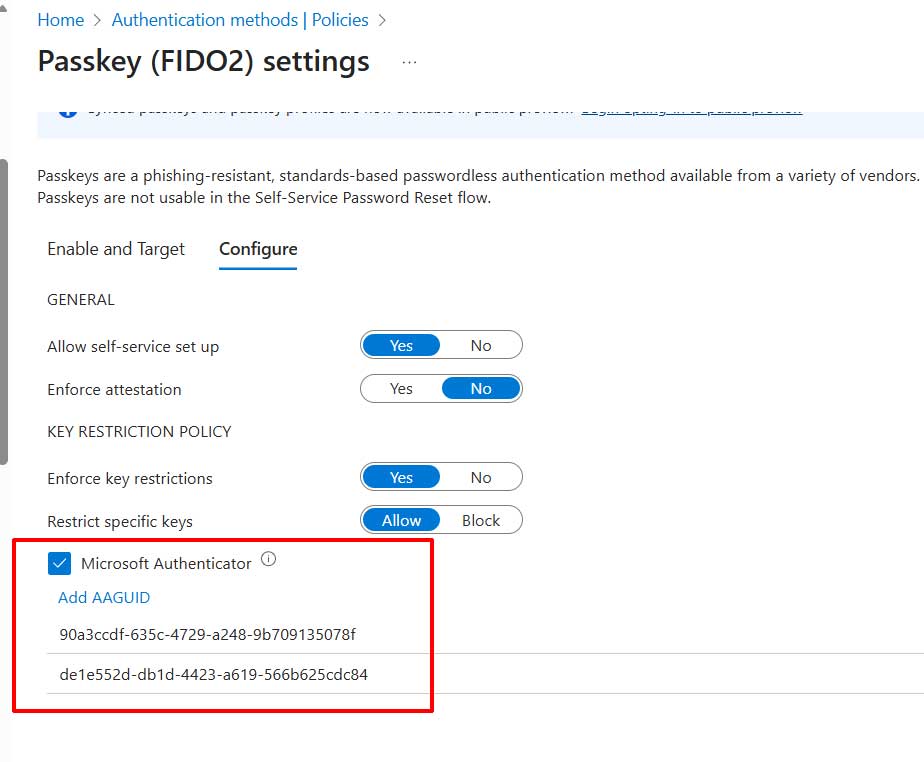
Under the Configure tab, configure the appropriate settings and enable Microsoft Authenticator with the following GUIDs:
- Authenticator for Android: de1e552d-db1d-4423-a619-566b625cdc84
- Authenticator for iOS: 90a3ccdf-635c-4729-a248-9b709135078f
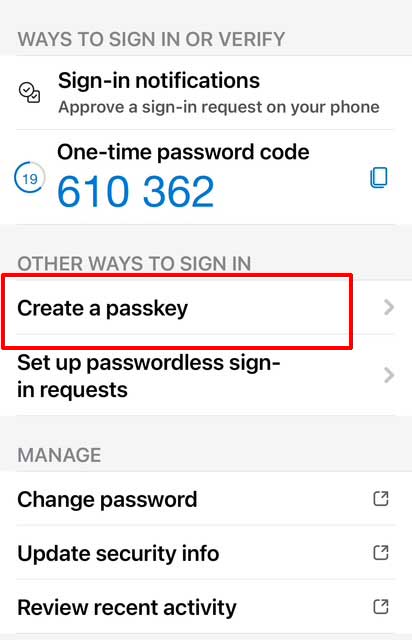
Add Passkey on your Microsoft Authenticator
This part is usually completed by the user from the MS Authenticator on their mobile phone. Open the Microsoft Authenticator app on your phone then follow the prompt to set up a passkey. The app will generate and store the private key securely on the phone.
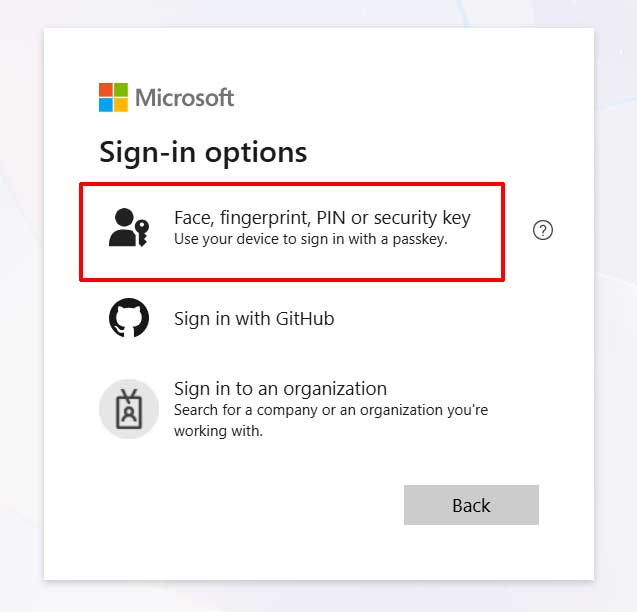
Now when I go to login to MS 365 and access my outlook on the web, one of the sign-in options would allow me to use passkey instead of entering my password.
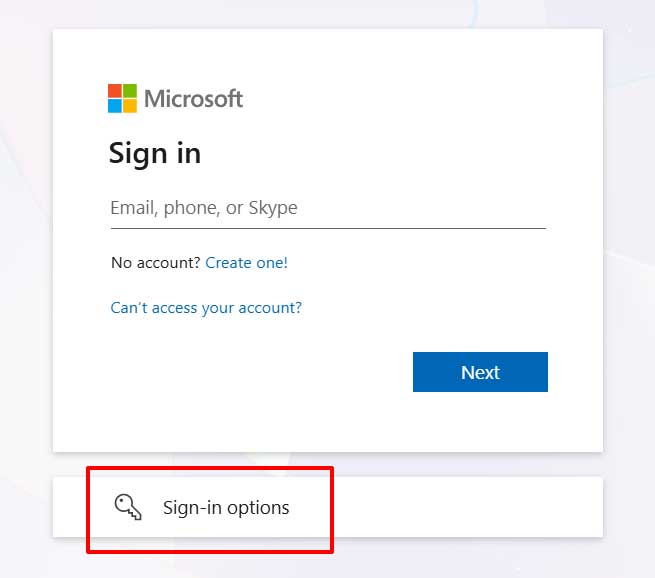
Select the Passkey option:
Since we are using the MS Authenticator on my mobile phone, select that option:
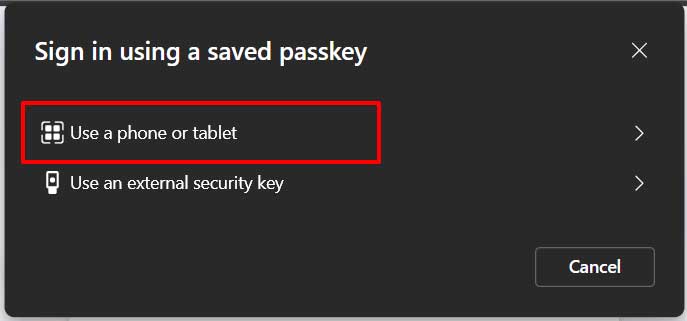
Scan the QR code with your phone, then confirm your identity by unlocking the passkey with either your biometric (fingerprint or face recognition) or your phone PIN. Make sure Bluetooth is turned on for both your computer and your phone, pairing isn’t required, but Bluetooth must be enabled so the devices can detect each other’s proximity.
Configure Conditional Access to Enforce Phishing Resistant MFA
If you want to enforce the use of passkeys, we can configure a conditional access policy. Make sure that users have already enabled passkeys on their MS Authenticator before enforcing this policy otherwise, they will not be able to login.
Under the Grant controls of the policy, instead of selecting Require MFA, select the Require Authentication Strength and pick Phishing Resistant MFA.

For me, understanding how all these pieces fit together has been both technically rewarding and exciting, because it shows how we can finally move beyond the vulnerabilities of passwords and codes where phishing-resistant authentication is the default. I hope this has been useful.